казахстан, кокшетау

СДЕЛАЙТЕ СВОИ УРОКИ ЕЩЁ ЭФФЕКТИВНЕЕ, А ЖИЗНЬ СВОБОДНЕЕ
Благодаря готовым учебным материалам для работы в классе и дистанционно
Скидки до 50 % на комплекты
только до
Готовые ключевые этапы урока всегда будут у вас под рукой
Организационный момент
Проверка знаний
Объяснение материала
Закрепление изученного
Итоги урока
Был в сети 25.01.2017 10:16

Хавдеш Еркин Хавдеш
учитель информатики и математики
52 года
 393
393
 123 239
Местоположение
Intoduction to Microsoft Office Word
Категория:
Информатика
25.01.2017 10:16

Просмотр содержимого документа
«Intoduction to Microsoft Office Word»

Microsoft Office Word
An Overview
Khavdesh Erkin
Computer Science Teacher

Lesson Plan for Today
- Getting Started
- The Ribbon
- The Office Button
- Opening a Document
- Viewing a Document
- Moving Around in a Document
- Help
Getting Started
- Open Microsoft Office Word from the Desktop
- Double-Click this Icon: or click right button on your mouse and click
- Double-Click this Icon: or click right button on your mouse and click
- This Will Open Microsoft Office Word
- This Will Open Microsoft Office Word
What it All Looks Like…
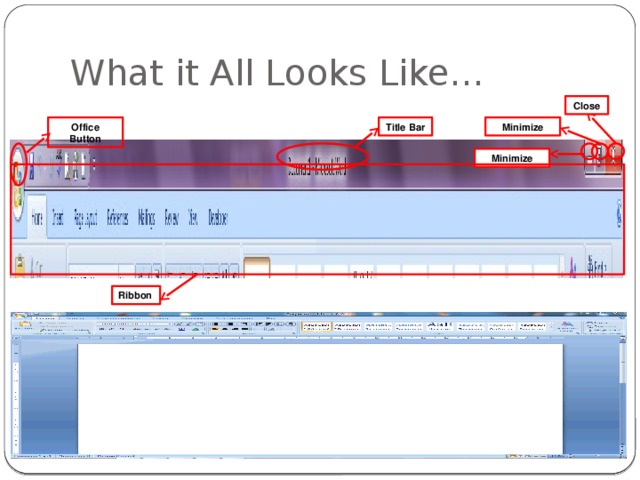
Close
Title Bar
Office Button
Minimize
Minimize
Ribbon

The Ribbon
- What is it?
- Displays commonly used commands On the top of the ribbon are 7 basic Tabs/Activity Areas
- Displays commonly used commands
- On the top of the ribbon are 7 basic Tabs/Activity Areas
- Home Insert Page Layout Reference Mailings Review View Within the tabs are little boxes called Groups Some have Galleries when this appears: Each Group has a Dialog Box Launcher which offers even more options
- Home Insert Page Layout Reference Mailings Review View
- Home
- Insert
- Page Layout
- Reference
- Mailings
- Review
- View
- Within the tabs are little boxes called Groups Some have Galleries when this appears: Each Group has a Dialog Box Launcher which offers even more options
- Some have Galleries when this appears:
- Each Group has a Dialog Box Launcher which offers even more options

The Home Tab
- The most commonly used commands for formatting and manipulating text
The Home Tab
Activity Area
Group
A Gallery
Dialog Box Launcher

The Insert Tab
- Commands for doing all the various types of inserting such as pictures, tables, date and time, symbols & many other options

Page Layout Tab
- The options for arranging the overall appearance of the document
The Reference Tab
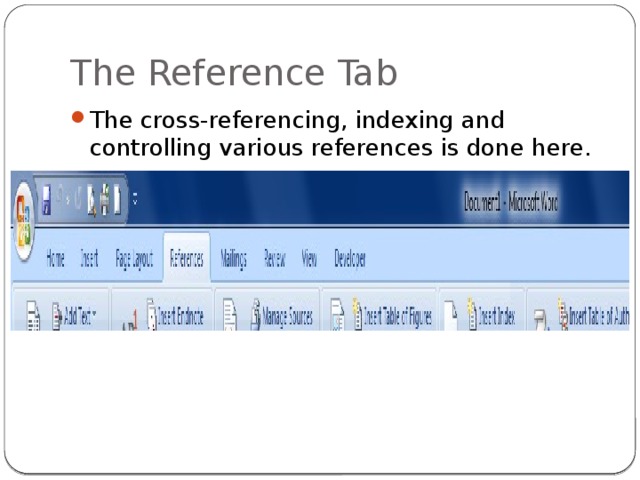
- The cross-referencing, indexing and controlling various references is done here.
The Mailings Tab
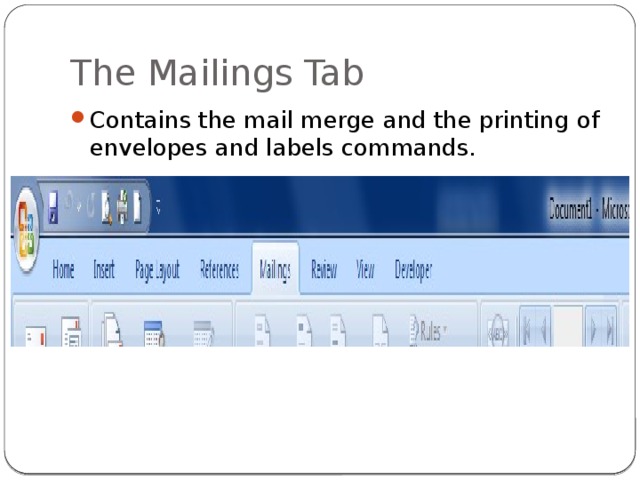
- Contains the mail merge and the printing of envelopes and labels commands.

The Review Tab
- Spelling and grammar checking are at home here and some other powerful controls for commenting, tracking, and comparing documents.
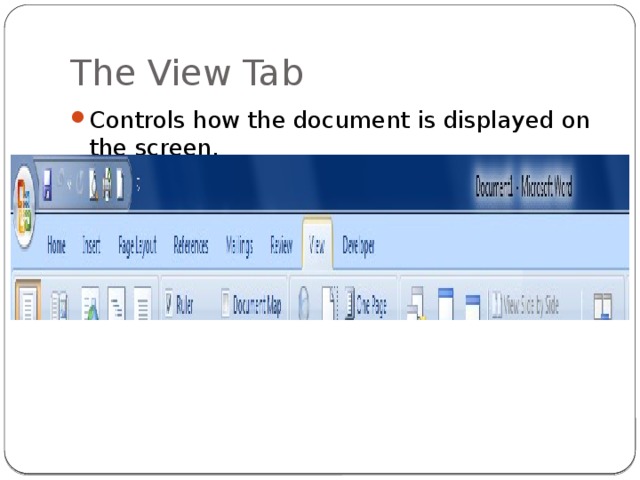
The View Tab
- Controls how the document is displayed on the screen.

The Office Button

The Office Button
- Located in the upper left-hand corner
- Has Several Commands
- New
- New
- Used for starting a new document Can choose a template for the different types of documents Open Used to Open a Document Or to load one into Word Save Used to store the document on the hard drive of the computer
- Used for starting a new document Can choose a template for the different types of documents
- Used for starting a new document
- Can choose a template for the different types of documents
- Open Used to Open a Document Or to load one into Word
- Used to Open a Document
- Or to load one into Word
- Save Used to store the document on the hard drive of the computer
- Used to store the document on the hard drive of the computer

The Office Button, Cont.
- Commands, Cont.
- Save As
- Save As
- Allow you to save a document by a specified name or in a specified folder Print Sends documents to the printer Prepare, Send, and Publish Powerful Commands that offer various options Not Covered in this course Close Another Way to Close your document
- Allow you to save a document by a specified name or in a specified folder
- Allow you to save a document by a specified name or in a specified folder
- Print Sends documents to the printer
- Sends documents to the printer
- Prepare, Send, and Publish Powerful Commands that offer various options Not Covered in this course
- Powerful Commands that offer various options
- Not Covered in this course
- Close Another Way to Close your document
- Another Way to Close your document

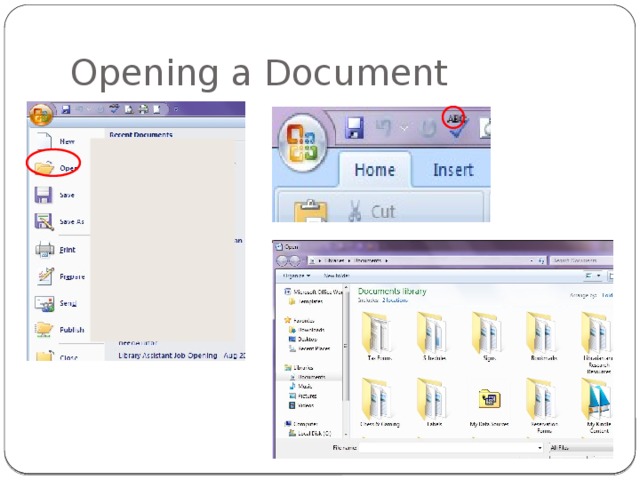
Opening a Document
- There are Two ways of Opening a Document
- Using “Open” Under the Office Button Clicking “Open” in the upper left-hand pane
- Using “Open” Under the Office Button
- Clicking “Open” in the upper left-hand pane
- You must know where the file is located and what the file is called.
Opening a Document

Viewing a Document
- There are Four Ways to View a Document:
- Dragging the Borders
- Dragging the Borders
- Makes Screen Larger or Smaller Using the Zoom Controls Makes page bigger or smaller Using the “Page Up”/ “Page Down” Keyboard buttons Moves Page to the next “screen’s worth” of text Using the “Next Page”/ “Previous Page” Buttons Moves to the next page or the previous page
- Makes Screen Larger or Smaller
- Makes Screen Larger or Smaller
- Using the Zoom Controls Makes page bigger or smaller
- Makes page bigger or smaller
- Using the “Page Up”/ “Page Down” Keyboard buttons Moves Page to the next “screen’s worth” of text
- Moves Page to the next “screen’s worth” of text
- Using the “Next Page”/ “Previous Page” Buttons Moves to the next page or the previous page
- Moves to the next page or the previous page

Viewing a Document
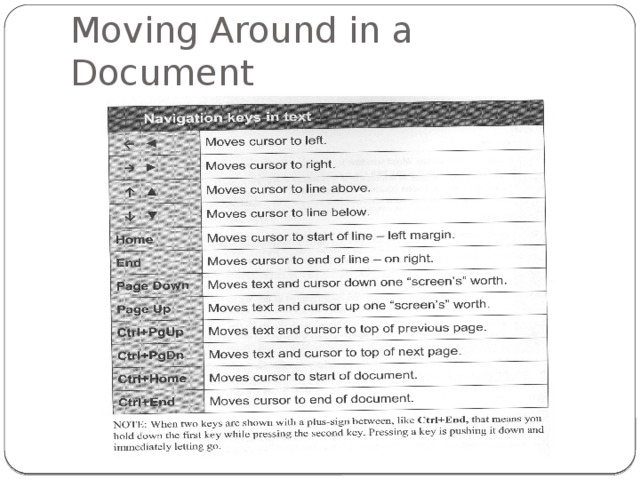
Moving Around in a Document
6

Help
- Use the Help Button when you need assistance or advice
- Type in a keyword/words

The End
- Created with the Help of:
- Senior Academy. (2008). Word 2007 Basics: An Introduction to Microsoft Office Word 2007 . Ludwig Keck.
- Senior Academy. (2008). Word 2007 Basics: An Introduction to Microsoft Office Word 2007 . Ludwig Keck.
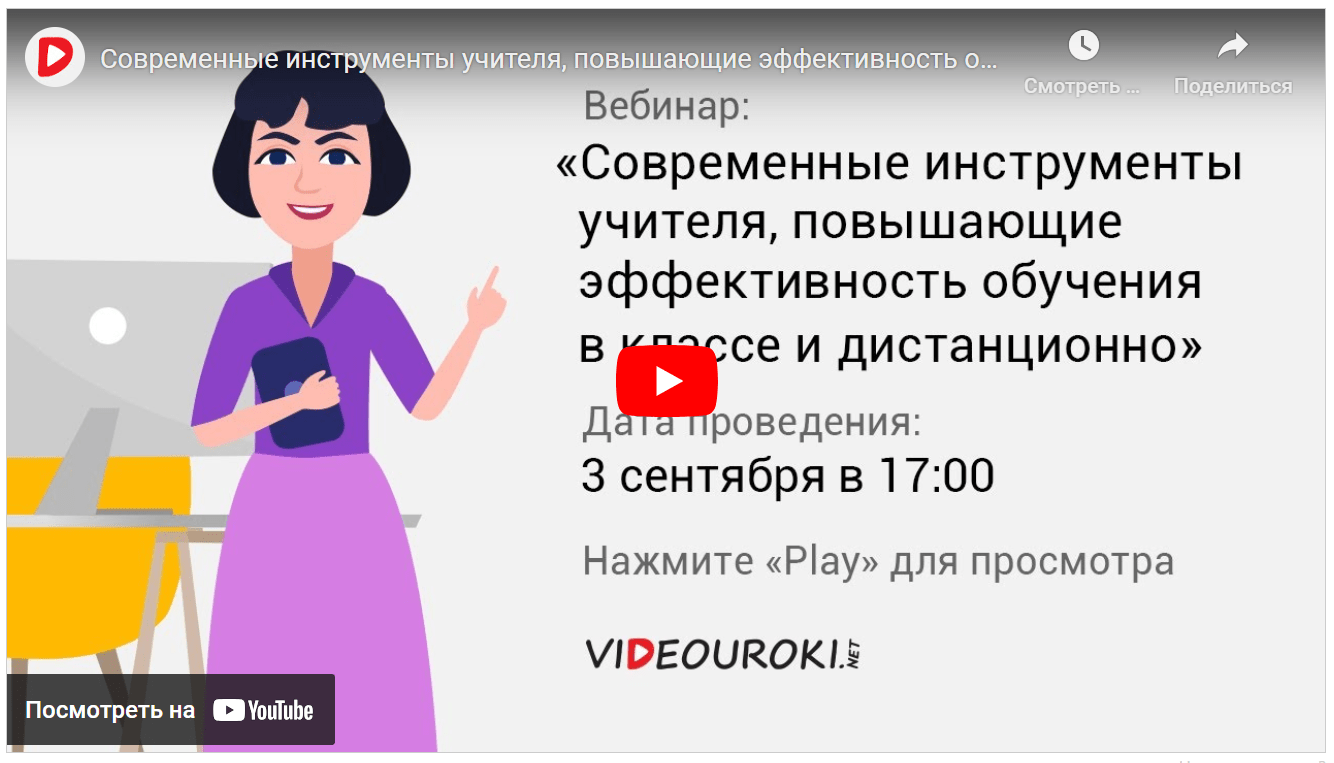
Вебинар для учителей
Свидетельство об участии БЕСПЛАТНО!