Россия, г. Муравленко

СДЕЛАЙТЕ СВОИ УРОКИ ЕЩЁ ЭФФЕКТИВНЕЕ, А ЖИЗНЬ СВОБОДНЕЕ
Благодаря готовым учебным материалам для работы в классе и дистанционно
Скидки до 50 % на комплекты
только до
Готовые ключевые этапы урока всегда будут у вас под рукой
Организационный момент
Проверка знаний
Объяснение материала
Закрепление изученного
Итоги урока
Была в сети 14.05.2026 11:41

Коновалова Зиля Робертовна
Преподаватель иностранного языка
37 лет
 2 956
2 956
 23 330
Местоположение
Специализация
Электронная почта и ее назначение
Категория:
Английский язык
18.06.2024 13:54

Просмотр содержимого документа
«Электронная почта и ее назначение»
План занятия
| Дата | Группа |
| 17.05.2024 | ДО-23д |
Дисциплина: Английский язык
Тема занятия: Электронная почта и ее назначение
.Цели занятия:
Обучающие: знать: лексику по теме
уметь: переводить иностранный текст, отвечать на вопросы, выполнять лексические упражнения
Развивающие:
дальнейшее развитие навыков письменной речи студентов;
Воспитательные: развитие чувства коллективизма;
воспитание личности, способной и желающей участвовать в общении на межкультурном уровне;
Общие компетенции: (поиск информации, извлечение информации, систематизация информации, обработка информации, письменная коммуникация, восприятие информации на слух)
Тип занятия: обобщение и систематизация знаний и умений
Вид занятия: практическое занятие
Формы организации: фронтальная, индивидуальная
Используемые приемы, методы и элементы пед. технологий: методы - объяснение, беседа, дискуссия, демонстрация, упражнение, опрос (устный и письменный, индивидуальный, фронтальный); приемы – чтение вслух, работа с таблицей; технологии – ИКТ, технология смешанного обучения
Межпредметные связи: информатика
Оснащение занятия: ПК
Дидактические средства обучения: English for Computer Science Students: Учебное пособие
Технические средства обучения (ТСО):
Ход урока
1.Орг.момент.
2. Повторение пройденного материала.
1. Match these terminologies with their translations:
| Desktop MyDocuments MyComputer RecycleBin Taskbar Folder File User Settings Find Help Run Shutdown Edit View Insert Format Tools Table | Завершение работы Правка Вид Вставка Формат Мой компьютер Корзина Панельзадач Выполнить Папка Файл, документ Пользователь Настройка Поиск Справка Таблица Сервис Рабочий стол Мои документы |
ANSWERS: 1r, 2s, 3f, 4g, 5h, 6j, 7k, 8l, 9m, 10n, 11o, 12i, 13a, 14b, 15c, 16d, 17e, 18q, 19p
2. Решите кроссворд.
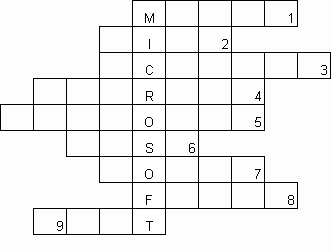
This small box is used to operate a computer.
A document on your computer.
A device which is used to transfer photos and texts to your computer.
To make a computer better or able to do more things.
This looks like a typewriter and has the keys you need to press.
It can be hard. It can be floppy.
A device which allows your computer to send messages along a telephone line.
An unfriendly or rude e-mail.
To start a computer.
1. mouse 2. file 3. scanner 4. upgrade 5. keyboard 6. disk 7. modem 8. flame 9. boot
3. Мотивация - детальное понимание иноязычного текста.
4.Актуализация опорных знаний - опора на изучение материала на родном языке
5. План изложения нового материала (с включением элементов самостоятельной работы студентов)
1. Знакомство с новой темой через чтение текста.
What is Email?
Email is a fantastic way to stay in touch with people. It’s fast and it’s as easy to email someone on the other side of the world as it is someone on the other side of the room. You may get your email account through the same people who provide your internet service - or you may sign up to one of the dedicated email providers, such as Hotmail, Gmail, or Yahoo!
One difference between using email software and using webmail is that you usually have to login to a webmail account each time you use it. You will need your email address and a password to do this. Webmail is free but is paid for by advertising, so you may also have to get used to small adverts on screen when you use it.
There are a couple of different ways to access your email, depending on which provider you join, but usually it’ll be through an email program installed on your computer or you can access your email online through a web browser. In both cases there should be an icon on your desktop. Click the email icon now.
Some mobile phones will also let you access your email. Smartphones are newer, advanced mobile phones and these have built-in software for sending and receiving email. Other types of mobile phone may also allow you to view and send email but with older models this is less likely.
When you set up your email account you’ll need to choose an email address and a password. Your email address is your public face when sending emails, so make sure that it’s something other people will remember. And make sure your password is something you will remember but no one else will guess.
Like phone numbers, every email address is unique. When choosing an email address you may find that your chosen address is already taken. If this happens then you’ll be prompted to take another. You may need to add numbers after your name if this happens but remember that spaces aren’t allowed in an email address.
2. Ответьте на вопросы:
1) How can you get an email account?
2) What are the ways to access emails?
3) What is the difference between using email and webmail?
4) What do you need to do when setting up an email account?
5) What can happen when choosing an email address?
6. Закрепление полученных знаний.
1. Заполните пропуски, используя следующие слова:
public, sending, free, choosing, touch, password, access
1. Email is a way to stay in _______ with people.
2. Webmail is ______ but is paid for by advertising.
3. There are different ways to _______ your email.
4. Smartphones have built-in software for ______ and receiving email.
5. When you set up your email account you’ll need to choose an email address and a _______.
6. Your email address is your _______ face when sending emails.
7. When _______ an email address you may find that your chosen address is already taken.
2. Соотнесите термины с их определением.
| Put each E- mail term next to the correct definition
| ||||||||||||||||||||||||||||||||||||||||||||||||||||||||||||||||||||||||
KEYS ( ключи)
| Put each E- mail term next to the correct definition
| ||||||||||||||||||||||||||||||||||||||||||||||||||||||||||||||||||||||||
7. Подведение итогов. Рефлексия.
8. Домашнее задание.

Вебинар для учителей
Свидетельство об участии БЕСПЛАТНО!